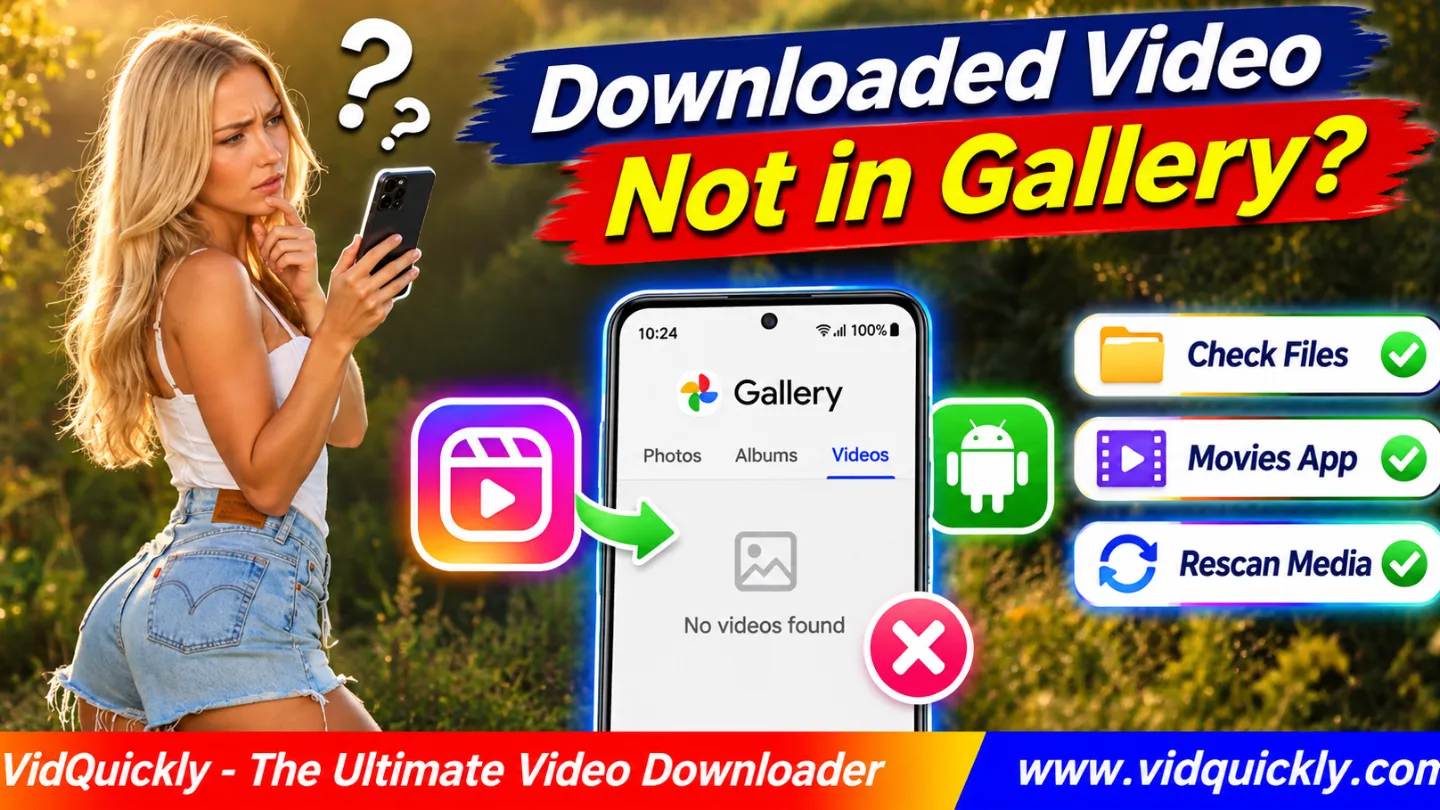
Instagram downloaded video not showing in Gallery on Android? Open Files by Google or your phone's file manager, find the MP4 in Downloads, and check whether it plays. If the file works but Gallery cannot find it, copy it to Movies and check the Gallery app's folders.
A missing Gallery thumbnail does not always mean the video download failed. Chrome may store the file outside your main photo library, or Android may not have indexed it yet.
This guide explains how to find Instagram Reels, fix hidden albums, refresh media detection, and solve MP4 compatibility problems on Samsung, Pixel, and other Android phones.
Key Takeaways — Quick Checklist
- Check Chrome's Downloads history.
- Find the MP4 with Files by Google or My Files.
- Confirm that the download completed.
- Play the video directly from the file manager.
- Copy a working MP4 into the Movies folder.
- Check Gallery albums and Google Photos device folders.
- Investigate
.nomediaand media indexing only if needed. - Keep the original file until everything works.
Where Do Downloaded Instagram Videos Go on Android?
The usual Instagram video downloads folder on Android is Downloads, although the exact location depends on your browser and settings. Chrome, Files by Google, Samsung My Files, and Gallery do not always display the same content.
Start with the file manager before changing your phone settings.
How do you find an Instagram video in Chrome Downloads?
- Open Chrome on your Android phone.
- Tap the three-dot menu.
- Select Downloads.
- Find the recent Instagram MP4.
- Check whether its download completed.
- Tap the filename to open it.
- Look for its folder location when available.
If the file appears in Chrome but not Gallery, the browser may have saved it successfully.
The next step is to find the actual MP4 in device storage.
How do you find Instagram downloads with Files by Google?
- Open Files by Google.
- Check the Recents section.
- Open the Downloads category.
- Sort files by date if necessary.
- Look for the downloaded
.mp4. - Tap the file to test playback.
- Check Internal storage if the file is missing.
A common path is:
Internal storage/Download/
Some file managers display the folder as Downloads.
Google explains these controls in its official Files by Google instructions.
Why is the file visible in Files but not Gallery?
Files is a file manager. Gallery is a media library that displays supported photos and videos.
A valid MP4 may exist in Downloads without appearing in the Gallery app's main view.
Possible causes include a hidden folder, delayed media indexing, unsupported video data, or application settings.
Do not download another copy until you have tested the existing file.
How to Move an Instagram Video From Downloads to Movies
To move an Instagram video to the Movies folder, locate the MP4 in Files, select Copy or Move, and choose Internal storage → Movies. Then reopen Gallery and look for the video.
Copying is safer when you want to preserve the original download.
How do you move an Instagram Reel using Files by Google?
- Open Files by Google.
- Navigate to Downloads.
- Find your Instagram MP4.
- Touch and hold the file.
- Select Copy to or Move to, when available.
- Choose Internal storage.
- Open the Movies folder.
- Confirm the copy or move.
- Open Gallery and check its albums.
- Play the video again.
If Movies does not exist, create a normal folder when your file manager supports that action.
Moving a compatible file can help Gallery discover it, but it cannot repair damaged media.
Should you use Movies, DCIM, or Pictures?
Movies is a practical folder for downloaded video files.
DCIM commonly contains camera recordings, while Pictures often contains images and other visual media.
You do not need to place every downloaded Reel inside the Camera folder.
For a clean library, use:
Internal storage/Movies/Instagram Downloads/
Folder names and Gallery behavior may vary between devices.
Does moving an MP4 reduce its quality?
No. Moving or copying the same file does not normally re-encode its video or change its bitrate.
Its resolution, codec, and audio tracks remain unchanged.
However, converting or exporting the recording through a video editor can introduce additional compression.
Keep the original MP4 until you confirm the copied version works.
How to Fix Instagram Reels Missing From Samsung Gallery or Google Photos
An Instagram Reel not in Gallery problem may involve the Gallery app rather than the downloaded file. Samsung Gallery can organize media into separate albums, while Google Photos provides a dedicated view for folders stored on your device.
Check the application you actually use.
How do you find an Instagram MP4 in Samsung Gallery?
- Open Samsung Gallery.
- Select Albums.
- Look for Downloads or Movies.
- Check whether the relevant album is hidden.
- Open Samsung My Files.
- Find the MP4 in Downloads.
- Confirm that the file plays.
- Return to Gallery and review album visibility.
Some Samsung devices let you choose which albums appear in the main Gallery view.
Do not assume the file disappeared because one album is hidden.
Why is a downloaded Reel missing from Google Photos?
Google Photos separates local device folders from cloud-backed media.
A video can exist in Downloads without appearing in your main Photos view or online account.
To find it:
- Open Google Photos.
- Tap Collections.
- Select On this device.
- Check Downloads or Movies.
- Find your saved Reel.
- Open the video to confirm playback.
- Review device-folder backup settings if needed.
Google documents this process in its guide to finding local media.
Turning on cloud backup is optional and does not repair an invalid MP4.
Android Gallery and File Location Comparison
| Location or App | What It Shows | What to Check |
|---|---|---|
| Chrome Downloads | Browser download history | Completion and filename |
| Files by Google | Accessible device files | Downloads and recent files |
| Samsung My Files | Device folders and storage | Download and Movies |
| Samsung Gallery | Recognized local media | Albums and hidden folders |
| Google Photos | Local and cloud media | Collections → On this device |
| Movies folder | Organized local videos | MP4 playback and visibility |
A file missing from cloud backup is not necessarily missing from the phone.
What Is the Android Media Scanner and Why Does It Matter?
The Android media scanner helps the operating system discover photos, videos, and audio files. Android stores information about recognized media in its media database, which Gallery applications can use to display local recordings.
A file may exist before the media index reflects its location.
How do you refresh media detection safely?
- Confirm that the MP4 exists in Files.
- Open it to test playback.
- Copy it into Movies if necessary.
- Close and reopen your Gallery app.
- Check Google Photos device folders.
- Restart the phone if the video remains missing.
- Check Gallery again.
Android usually updates its media index automatically.
Avoid installing unknown media-scanner tools that request broad access to your files.
Can a .nomedia file hide Instagram videos?
Yes. Android recognizes a file named .nomedia as an instruction to exclude a folder's media from normal scanning.
This can prevent Gallery from showing otherwise valid photos or videos.
If you suspect this issue:
- Open your file manager.
- Enable hidden-file visibility.
- Inspect the affected Downloads or Movies folder.
- Look for a file named
.nomedia. - Confirm that the folder should display its media.
- Remove that file only if you understand its purpose.
- Allow Android to refresh its media index.
Do not delete .nomedia from unrelated app folders.
Applications may use it intentionally to keep private or temporary files out of Gallery.
Should you clear Android Media Storage data?
No, not as an early fix.
Clearing system media data can force a database rebuild and may disrupt how media appears in applications.
First check the file, folder, Gallery settings, and video codec.
Avoid wiping application data or deleting downloads without a verified backup.
Why Is an Instagram MP4 Not Showing or Playing in Gallery?
An Instagram MP4 not showing in Gallery problem may involve the file itself. A video can have the .mp4 extension but contain incomplete data or a codec the phone cannot decode.
Check the media before changing its filename or converting it.
Does Android support every Instagram MP4?
No. MP4 is a container that can store different video and audio streams.
H.264 video with AAC audio offers broad Android compatibility.
HEVC/H.265 and AV1 compatibility depends on the device, Android version, and playback software.
An incomplete download may also fail even when its codec is supported.
MP4 Troubleshooting Table
| Symptom | Likely Cause | First Fix |
|---|---|---|
| File exists but Gallery cannot see it | Folder or media indexing | Check Movies and albums |
| Video has zero bytes | Failed download | Verify source and retry |
| MP4 cannot open anywhere | Damaged or unsupported file | Check size and codec |
| Video works in another player | Gallery compatibility | Update or change player |
| Thumbnail missing | Indexing or decoding issue | Test playback |
| Picture works but sound is missing | Audio track or codec issue | Inspect the audio stream |
| Only one Reel is missing | Individual file problem | Check that MP4 |
| Every recent video is missing | Gallery or indexing issue | Review app settings |
How do you check a downloaded MP4?
- Open Files by Google or My Files.
- Find the Instagram video.
- Review the file size and extension.
- Open it with the available player.
- Check whether the picture appears.
- Test the audio and full duration.
- Try another trusted player if necessary.
- Keep the original while investigating.
If it plays normally elsewhere, the file may be healthy and Gallery may be the problem.
Do not rename an HTML download or incomplete file to .mp4 and expect it to work.
Can a video be missing from Gallery because of captions?
Missing captions and a missing Gallery thumbnail are separate issues.
Instagram descriptions, hashtags, and automatic subtitles may not exist inside the downloaded MP4.
These missing text elements do not normally stop a compatible video from appearing in Gallery.
Read why Instagram captions disappear after downloading videos for that separate problem.
How to Prevent Instagram Videos From Disappearing From Android Gallery
The easiest prevention method is to verify each download, use a consistent storage folder, and keep important original recordings. A Gallery thumbnail alone does not prove that a file is complete or safely backed up.
How do you download an Instagram Reel with VidQuickly?
For public videos you have permission to save:
- Open the Instagram Reel or video post.
- Copy its individual link.
- Visit VidQuickly's Instagram video download tool.
- Paste the complete URL.
- Select Download.
- Review the available file options.
- Save a compatible MP4.
- Open Chrome Downloads or Files.
- Test the saved file.
- Copy it into Movies when useful.
VidQuickly supports compatible public Instagram video links.
Its available format and resolution depend on the accessible source, while the browser and Android control where the file is saved.
How do you keep your Instagram downloads organized?
Use clear filenames and a dedicated folder for downloaded Reels.
For important videos, also keep a separate backup instead of relying entirely on Gallery.
Remember that Instagram's Save bookmark does not create a local file. For the difference, read how Instagram Save and Download differ.
If you use both Android and iPhone, follow how to find downloaded Reels on iPhone for the separate Files-to-Photos workflow.
Can another VidQuickly downloader fix Instagram Gallery issues?
Not automatically. An Android Gallery problem can affect videos from many websites.
For compatible videos hosted on Facebook, use VidQuickly's Facebook video download tool.
For Instagram videos, use the Instagram tool.
Then check local storage and media compatibility instead of repeatedly switching download services.
Responsible use: Save public videos for offline personal research and educational purposes only when you have permission or another lawful basis. Respect copyright, creator consent, account privacy, and platform terms. Do not use download tools to bypass access restrictions.
Conclusion: Find the File Before Downloading Again
If your Instagram downloaded video is not showing in Android Gallery, start with Chrome Downloads and Files by Google. A completed MP4 may already exist even when Samsung Gallery or Google Photos cannot find it.
Play the file first. Then check Movies, hidden albums, device folders, and Android's media indexing. If the MP4 fails in every player, inspect its size and codec before attempting another download.
Do not delete system media data or your only working video copy during troubleshooting.
For authorized public Instagram Reels, try VidQuickly, verify the completed MP4, and organize it in a folder your Gallery can recognize.
Frequently Asked Questions About Missing Android Gallery Videos
Why is my downloaded Instagram video not showing in Android Gallery?
The MP4 may remain in Downloads, an album may be hidden, or Android may not have indexed the file. Check Files first, then test playback and review Gallery folders.
Where do Chrome Instagram downloads go on Android?
Chrome commonly saves downloaded files in the Download folder. Check Chrome → Downloads or use Files by Google to find the saved MP4. Custom download locations may differ.
How do I move an Instagram video to Gallery?
Locate the MP4 in Files or My Files and copy it into Internal storage → Movies. Reopen Gallery and check the relevant album. Moving does not guarantee visibility if the codec is unsupported.
Why is my Instagram Reel missing from Google Photos?
The video may be in a local device folder rather than your main Photos view or cloud library. Open Collections → On this device and check Downloads or Movies.
Can Android's media scanner make a video appear in Gallery?
Yes, if the file is valid and the folder allows media indexing. Moving it into Movies, reopening Gallery, or restarting the phone may help the media database update.
Does a .nomedia file stop Gallery from finding MP4 videos?
Yes. A .nomedia file can exclude media from scanning in the affected directory. Inspect only the relevant folder and avoid changing files used by unrelated applications.
Why does my MP4 play in Files but not in Samsung Gallery?
The file may use a codec that Gallery cannot handle, or the app may not have indexed its folder. Test another trusted player and check the media location before converting the file.