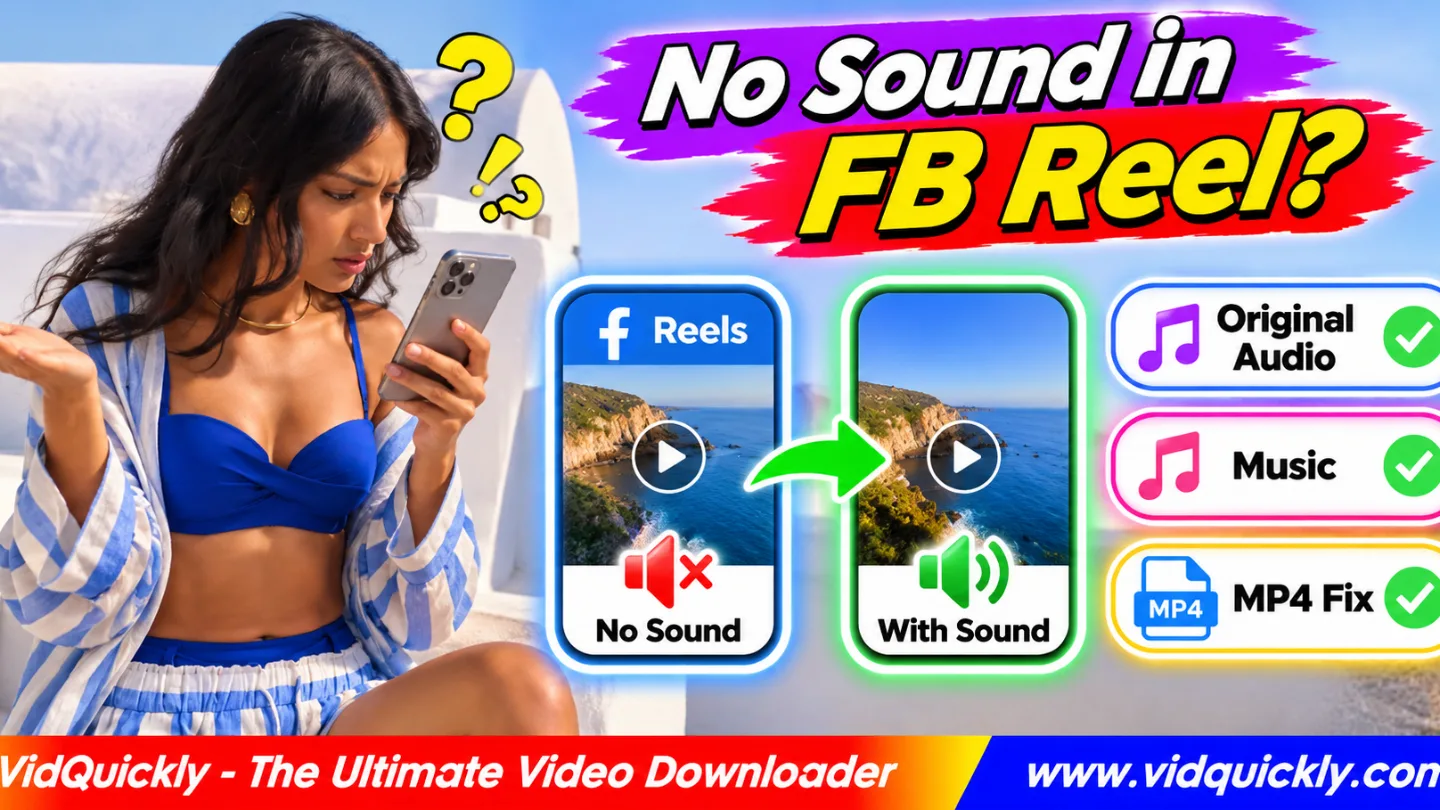
If your Facebook Reel download has no sound, first play the original Reel on Facebook, then check whether the downloaded MP4 contains an audio track. Missing sound can result from music licensing, separate video and audio streams, unsupported codecs, or incorrect player settings.
A Facebook Reel may play with music online but become silent after downloading. This does not always mean the file is damaged.
Some downloads contain video only, while others include an audio track that your device cannot play correctly.
This guide explains how to identify original audio, licensed music, and MP4 audio problems using simple playback tests and MediaInfo.
Key Takeaways:
- Check whether the original Facebook Reel plays with sound.
- Test the downloaded MP4 in another video player.
- Use MediaInfo to confirm whether an audio stream exists.
- Understand the difference between original audio and licensed music.
- Check AAC compatibility before converting your video.
- Do not expect video conversion to restore missing audio.
- Respect music licensing and copyright restrictions.
Why Does a Downloaded Facebook Reel Have No Sound?
A downloaded Facebook Reel may have no sound because the MP4 lacks an audio stream, its audio codec is unsupported, or the source uses music that is unavailable in the downloaded version. Device settings and incomplete downloads can also cause silent playback.
The most common causes include:
- Missing audio stream: The downloaded file contains video but no audio.
- Licensed music restrictions: Music availability differs by region, account, or usage rights.
- Separate media streams: The download process saved video without its associated audio.
- Unsupported audio codec: The player cannot decode the audio format.
- Muted playback: The device or player has disabled sound.
- Incomplete file: The download ended before all media data arrived.
The correct fix depends on which problem affects your file.
For example, changing the volume will not help when the MP4 contains no audio track.
Similarly, converting a silent video cannot recreate music that was never included.
Original audio vs licensed music
Facebook Reels can contain original recordings, music from Meta's available music features, or a combination of audio elements.
Original audio generally refers to sound associated with the creator's recording or uploaded content. It may include speech, environmental sounds, or music that the creator added.
Licensed music refers to music made available under applicable rights agreements.
These categories can affect what viewers hear and what creators may reuse.
A Reel playing music inside Facebook does not guarantee that every downloadable version contains that music.
Can Facebook remove music after publication?
Yes. Music availability can change because of licensing agreements, regional restrictions, or content rights enforcement.
A Reel may become muted or lose certain music in some situations.
However, missing music in a downloaded MP4 does not prove that Facebook removed the soundtrack.
You must check the original Reel and inspect the downloaded file before identifying the cause.
How to Fix a Facebook Reel Download With No Sound
Start with simple playback checks before changing the MP4 file. If the original Reel has sound but your downloaded copy does not, inspect the file's audio stream and try another authorized download option.
Fix 1: Check the original Reel on Facebook
- Open the original Reel in Facebook.
- Turn on your device's media volume.
- Check the Reel's mute control.
- Play the entire video.
- Listen for speech, music, and other sounds.
- Compare the result with your downloaded file.
If the original Reel is also silent, the issue may involve its publication, music availability, or playback settings.
If Facebook plays audio correctly, continue checking the MP4.
Fix 2: Test another video player
- Locate the downloaded Facebook MP4.
- Open it in your default video player.
- Confirm that the volume is enabled.
- Disconnect Bluetooth headphones if necessary.
- Try a second compatible media player.
- Check whether the audio works.
A different player may support an audio codec that your default Gallery application cannot decode.
If one player produces sound and another remains silent, the file probably contains audio.
Focus on playback compatibility rather than downloading again.
Fix 3: Check the downloaded file size
- Open your phone's file manager.
- Find the Facebook Reel.
- Check its file size.
- Confirm that the download completed.
- Play the video from beginning to end.
- Retry the authorized download if the file is incomplete.
A very small or incomplete file may contain missing media data.
However, file size alone cannot confirm whether an audio stream exists.
Use MediaInfo for a more reliable check.
Fix 4: Try another available download version
Some video sources provide multiple media representations. A particular download option may contain video only, while another compatible version may include audio.
For an eligible Reel, open the Facebook Reel MP4 saving service and review the available download options.
Choose a version that includes audio when the service identifies one.
Do not assume that the highest video resolution always includes a complete soundtrack.
Also, a downloader cannot guarantee access to music that Facebook or the rights holder does not make available.
How to Check Missing MP4 Audio Tracks With MediaInfo
MediaInfo shows whether an MP4 contains an audio stream and identifies its codec, bitrate, channels, and sample rate. This helps separate a missing-audio problem from a player compatibility problem.
How to inspect a Facebook MP4 using MediaInfo
- Install MediaInfo from its official website or a trusted software source.
- Open the application.
- Select your downloaded Facebook Reel.
- Switch to a detailed information view.
- Find the Audio section.
- Check the audio format, codec, and channels.
- Compare the results with the video playback problem.
For a typical compatible MP4, MediaInfo might display:
General
Format: MPEG-4
File size: 18.5 MiB
Duration: 00:00:30

Video
Format: AVC
Codec ID: avc1
Width: 1080
Height: 1920

Audio
Format: AAC LC
Codec ID: mp4a-40-2
Channels: 2
Sampling rate: 48000 Hz
These values are illustrative, not measurements from a particular Facebook Reel.
If MediaInfo displays no Audio section, the file may contain only a video stream.
What do the MediaInfo results mean?
| MediaInfo Result | Meaning | Recommended Action |
|---|---|---|
| AAC audio track exists | File contains a common audio format | Check player and volume |
| Audio track exists, but codec is unsupported | Player may not decode the soundtrack | Try another player or convert authorized media |
| No audio track appears | MP4 contains no detectable audio stream | Check source and download version |
| Audio duration is shorter than video | File may be incomplete or incorrectly processed | Verify the download |
| Audio track exists but remains silent | Track may contain silence or have a playback issue | Listen in another player and inspect the source |
| Video and audio durations differ | Streams may have synchronization problems | Check the original file or re-export |
An audio stream can exist without containing audible sound.
MediaInfo confirms the stream's technical properties, not whether speech or music is actually present.
Can FFprobe also detect missing audio?
Yes. FFprobe can list audio streams inside an MP4 file.
Run:
ffprobe -v error -select_streams a \
-show_entries stream=index,codec_name,channels,sample_rate \
-of json "facebook-reel.mp4"
If the result contains an empty streams array, FFprobe found no audio stream.
This test is useful for developers, video editors, and creators managing many downloaded files.
Facebook Original Audio vs Licensed Music: What Changes After Download?
Original audio and licensed music can have different availability and usage conditions. A Facebook Reel may combine both, but a downloaded file does not necessarily preserve every sound heard during playback inside the Facebook app.
Why is Facebook Reel music missing after download?
Music may be missing because:
- The available media version does not include the soundtrack.
- The download process saved only the video stream.
- Music rights limit availability in certain regions.
- Facebook changed the audio available for that publication.
- The downloaded file contains an incompatible audio track.
Check the original Reel before assuming that a music license caused the problem.
A missing audio stream is a technical finding. A licensing restriction is a rights-related explanation.
They are not interchangeable.
Does Facebook use separate audio and video streams?
Facebook can deliver videos through adaptive streaming technologies, including MPEG-DASH, which may use separate audio and video representations.
A video-only representation does not contain a complete soundtrack.
A compatible media processing workflow must use the available authorized audio and video representations correctly.
An ordinary MP4 can also contain both streams together.
The exact delivery method varies by content and playback conditions.
Can you reuse downloaded Facebook music?
Not automatically. Downloading a Reel does not grant permission to reuse copyrighted music in another publication, commercial project, or advertising campaign.
Music available inside Facebook may have platform-specific licensing conditions.
For creators, keep the original recording and the necessary music licenses.
Before monetizing reused footage, review copyright rules for reused Facebook videos.
Legal and safety disclaimer: Download and use only videos and audio that you own, have permission to save, or have another lawful basis to access. Respect copyright, music licenses, privacy settings, and Meta's terms. Do not bypass access restrictions or attempt to recover protected music without authorization.
How to Fix Facebook MP4 Audio Codec and Playback Problems
If your MP4 contains an audio stream but remains silent, test its codec and playback settings. AAC audio inside an MP4 container offers broad compatibility, although actual support depends on the device and software.
Which audio codecs work with Facebook MP4 files?
Common audio formats include:
- AAC: Widely supported in MP4 files and mobile players.
- MP3: Supported by many players, though not every export workflow uses it.
- Opus: Common in web media, but compatibility varies across MP4 players.
- Other codecs: May require a different player or conversion.
The .mp4 extension identifies the container, not the audio codec.
For broad device compatibility, H.264 video with AAC audio is a practical export combination.
How to convert an authorized MP4 to AAC audio
If the MP4 contains a valid audio stream that your player cannot decode, you can create a more compatible copy.
With FFmpeg, run:
ffmpeg -i "input.mp4" \
-map 0:v:0 -map 0:a:0 \
-c:v copy -c:a aac -b:a 192k \
-movflags +faststart "output.mp4"
This command copies the video stream and converts the selected audio stream to AAC.
It requires an existing audio stream.
If the input file contains no audio, the command will fail rather than invent a soundtrack.
For your own video, return to the original editing project when the soundtrack is missing.
What if the Reel has sound on Android but not iPhone?
Different devices may use different media decoders and player applications.
Check the MP4 with MediaInfo and test another player.
For iPhone users, follow this Safari and iPhone video saving workflow.
For Android users, review these Android Gallery troubleshooting steps for downloads.
If the same file plays with sound on one device but not another, investigate codec compatibility before downloading again.
How to Prevent Missing Audio in Future Facebook Reel Downloads
The best way to avoid silent downloads is to preserve your original recordings and verify each downloaded MP4 before deleting its source. A simple audio check can prevent problems when editing, sharing, or archiving videos.
Recommended audio verification workflow
- Save the original video from your camera or editing application.
- Keep the original voiceover and licensed music files.
- Download an eligible Facebook Reel when necessary.
- Open the MP4 in a compatible player.
- Listen to the beginning, middle, and end.
- Inspect its audio stream using MediaInfo.
- Keep a backup of the verified file.
For cross-platform creators, an Instagram Reel media saving option may help preserve eligible Instagram recordings.
However, Facebook and Instagram can provide different media versions and music availability.
Do not assume that downloading the same Reel from both platforms produces identical audio.
Quick audio troubleshooting checklist
- Original Facebook Reel plays with sound.
- Downloaded MP4 opens successfully.
- Device volume and Bluetooth output are correct.
- Another player produces the same result.
- MediaInfo detects an audio stream.
- Audio codec is supported.
- Downloaded file is complete.
- Music permissions are understood.
If the file contains no audio stream, focus on the source recording and available authorized download versions.
If the file contains audio, focus on decoding and playback.
Frequently Asked Questions
Why does my Facebook Reel have sound online but not after downloading?
The downloaded MP4 may lack an audio stream, contain an unsupported codec, or use a media version without the music heard online. Compare the original Reel with the downloaded file and inspect its audio using MediaInfo.
Can I restore missing music in a downloaded Facebook Reel?
Only when you have an authorized source containing that music or the necessary rights to add it. Video conversion cannot restore audio that is absent from the file.
How do I know whether my Facebook MP4 has an audio track?
Open the file in MediaInfo and look for an Audio section. If no audio stream appears, the MP4 may contain video only. FFprobe can provide a similar technical check.
Why is my downloaded Facebook Reel muted on iPhone?
The file may use an unsupported audio codec, contain no audio, or play through an unexpected audio output. Check volume, Bluetooth devices, file compatibility, and the original Reel.
Does changing MP4 to MP3 fix missing Facebook Reel audio?
No. Changing the filename extension does not create audio. Converting an MP4 to MP3 also cannot recover a soundtrack when the source contains no audio stream.
Can music licensing make a Facebook Reel download silent?
Music licensing can affect soundtrack availability, but it is not the only explanation. First confirm whether the downloaded MP4 contains an audio stream and whether the original Reel still plays music.
Conclusion: Check the Audio Track Before Downloading Again
A Facebook Reel download with no sound does not always mean the video is broken. The problem may involve missing audio streams, music availability, unsupported codecs, or player settings.
Start by playing the original Reel, then test the downloaded MP4 and inspect its audio using MediaInfo.
If an audio stream exists, try another player or convert your authorized file to a compatible format.
If no audio stream exists, check your original recording or available download versions.
Use VidQuickly to save eligible Facebook videos, verify their sound, and preserve your original media files whenever possible.