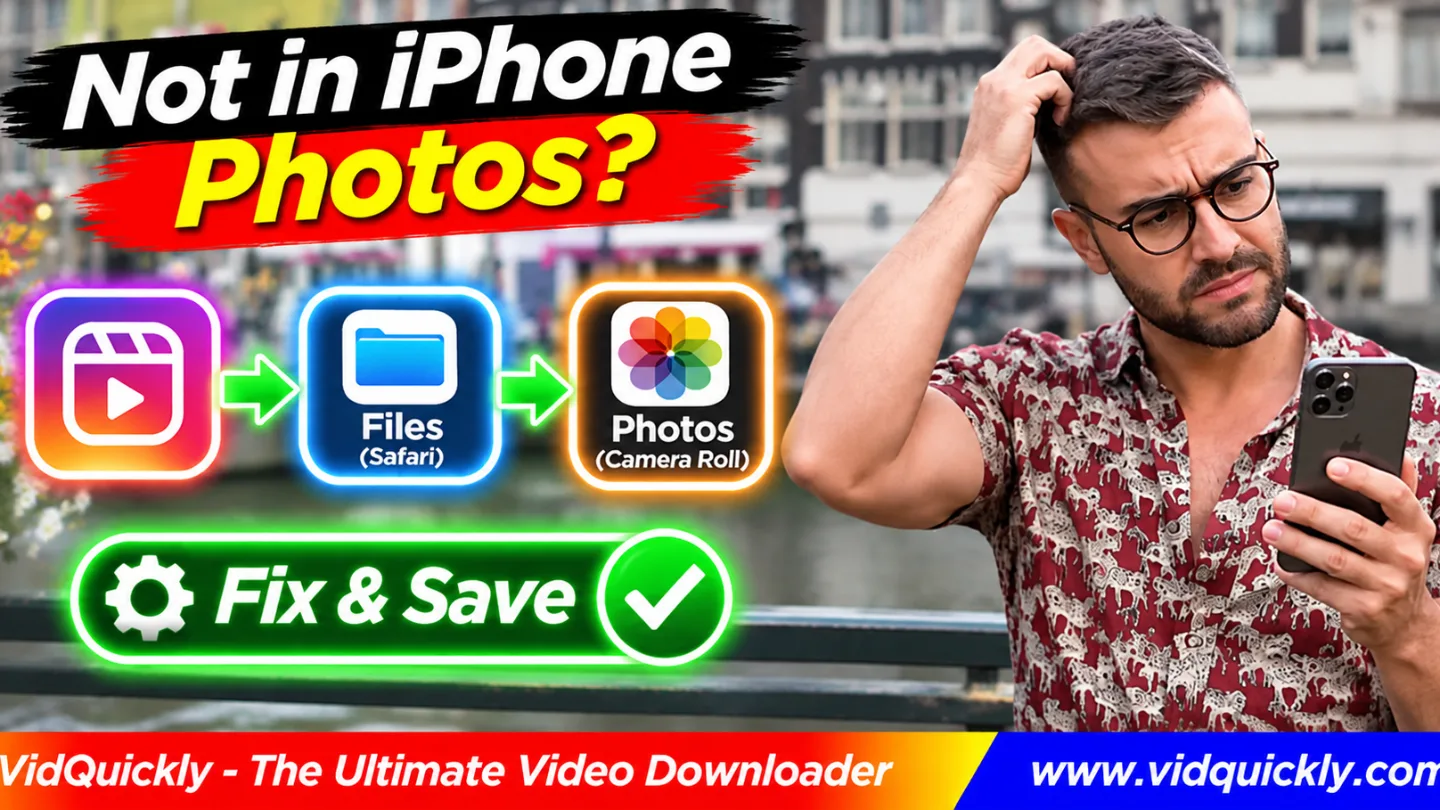
Instagram downloaded video not in Photos on iPhone? Your video is probably in the Files app, not the Photos library. Open Files, find the MP4 in Downloads, tap Share, and select Save Video. Then open Photos to confirm that the video appears.
Safari normally saves downloaded videos as files. It does not automatically add every Instagram Reel to your camera roll. The download location, video format, and available storage can also affect the result.
This guide explains how to find Instagram downloads, move videos into Photos, change Safari settings, and fix missing Save Video options without downloading the same Reel again.
Key Takeaways — Quick Checklist
- Open Files and check the Downloads folder.
- Look under both iCloud Drive and On My iPhone.
- Check Safari's recent download list.
- Open the MP4 to confirm it plays.
- Tap Share and choose Save Video.
- Find the imported video in Photos.
- Check the file format if Save Video is missing.
- Keep the original until the import succeeds.
Why Is My Downloaded Instagram Video Not in iPhone Photos?
An Instagram video downloaded but not in gallery problem usually means Safari saved the recording in Files. The Photos app manages your photo library, while Files stores documents and downloaded media.
A completed browser download does not always create a Photos library item.
Does Safari save Instagram videos to Files or Photos?
Safari usually saves downloaded MP4 files in the location selected under its Downloads settings.
This may be:
- iCloud Drive → Downloads.
- On My iPhone → Downloads.
- Another folder selected by the user.
The Photos app does not act as a standard Safari Downloads destination.
To add a compatible video to your camera roll, open it from Files and use the available Save Video action.
Is Instagram Save different from downloading a Reel?
Yes. Instagram's in-app Save feature can bookmark content for later viewing inside Instagram.
It does not necessarily create a local MP4 in Photos.
A browser downloader, by contrast, can save a compatible video file to your device.
Meta also provides official options for managing your own Instagram information, as explained in its Accounts Center data download announcement.
For your own recordings, keep the original camera files whenever possible.
Where Do Instagram Videos Download on iPhone?
The Instagram download location on iPhone depends on Safari settings and the action used to save the video.
Check Safari's download history first. Then search the Files app in the selected storage location.
How do you find Instagram videos in Safari Downloads?
- Open Safari.
- Find the Downloads button near the address field, if available.
- Tap Downloads.
- Locate your completed Instagram MP4.
- Tap the file to open it.
- Check the filename and video duration.
- Use the available share or file-management actions.
Apple explains this process in its guide to finding iPhone downloads.
If Safari's recent list is empty, open Files and check the configured download folder.
How do you find videos in the Files app?
- Open Files on your iPhone.
- Tap Browse.
- Select iCloud Drive.
- Open Downloads.
- Look for the MP4 filename.
- If missing, return to Browse.
- Select On My iPhone.
- Open Downloads or your selected folder.
- Use Search if necessary.
A file may appear in one location but not the other.
If you changed Safari's download settings, older files may remain in the previous folder.
How do you change Safari's download location?
- Open Settings.
- Tap Apps → Safari on recent iOS versions.
- Select Downloads.
- Choose iCloud Drive or On My iPhone.
- Alternatively, select another supported folder.
- Return to Safari.
On some older iOS versions, Safari appears directly in the main Settings list.
Changing this setting affects where future downloads go. It does not move existing files or automatically import videos into Photos.
How to Move an Instagram Video From Files to Photos
To move Instagram video from Files to Photos, open the completed MP4 and select Share → Save Video when iOS offers that action.
This creates a Photos library item from a compatible local file.
How do you save an Instagram Reel to your camera roll?
- Open Files.
- Navigate to the downloaded MP4.
- Tap the file to preview it.
- Confirm that the video plays.
- Tap the Share icon.
- Scroll through the available actions.
- Select Save Video.
- Open Photos.
- Find the imported video.
- Play it to confirm the import worked.
This is the main method to save Instagram Reel to camera roll after a Safari download.
If Save Video does not appear, check the file format and download status before trying again.
Does saving a video to Photos remove it from Files?
Usually, no. Importing a compatible video into Photos can leave the original MP4 in Files.
This means you may have two copies using device or cloud storage.
Keep the original until you confirm that the imported video plays correctly.
You can then decide whether to retain both files for backup or remove an unnecessary copy.
Can you import several downloaded videos together?
Depending on the files and iOS version, Files may offer sharing actions for multiple selected items.
Try these steps:
- Open the folder containing the videos.
- Tap the More menu.
- Choose Select.
- Select the compatible MP4 files.
- Tap Share.
- Look for a suitable save action.
- Check Photos for the results.
If the option is missing, import each file separately.
This helps identify a video that causes the batch to fail.
Why Is Save Video Missing From the iPhone Share Menu?
The Save Video option may be unavailable when iOS cannot import the selected file. A completed download is not always a valid, Photos-compatible video.
Check whether the MP4 opens and whether it contains usable video data.
What does an unsupported MP4 look like?
MP4 is a container format. It can contain different video and audio codecs.
For example, H.264 video with AAC audio is a common compatible combination.
However, a file ending in .mp4 may contain unsupported video data, missing media tracks, or incomplete information.
Changing the extension does not repair these problems.
What should you check before converting a video?
Inspect the file in Files.
Check for these signs:
- The filename ends in
.mp4. - The file has a reasonable size.
- The download completed.
- The video preview opens.
- Playback reaches the end.
- Picture and sound work correctly.
- iOS offers Save Video when sharing.
If the file cannot play, the issue may involve the download or media format rather than Photos itself.
Can a silent Instagram Reel still appear in Photos?
Yes. A video without sound can still be a valid video file.
Missing audio and an unsupported video format are separate problems.
If your MP4 imports but plays silently, check the source recording and its audio track.
For more help, read why Instagram Reels lose their audio.
Do not assume that saving the file again will restore licensed music.
How to Fix Instagram Videos Not Showing in Photos
When an Instagram video is not showing in Photos, first check whether the file imported successfully. A download problem, file-format problem, and Photos display problem require different fixes.
iPhone Video Download Troubleshooting Table
| Problem | Likely Cause | First Fix |
|---|---|---|
| Video missing from Photos | File remains in Downloads | Open Files |
| File missing from Downloads | Different save location | Check Safari settings |
| MP4 opens in Safari | Browser plays video inline | Use available save action |
| Save Video missing | Unsupported or incomplete file | Check MP4 playback |
| Video imports but is silent | Missing or unavailable audio | Inspect source audio |
| Import fails | Storage or file issue | Check storage and format |
| Video not easy to find | Library sorting or view | Search Photos |
| Multiple files missing | Incomplete batch import | Import individually |
How do you find a video after importing it?
Open Photos and check the recently saved or recently added area available on your iOS version.
You can also search for videos or browse the Videos media collection.
Remember that Photos may organize items by capture date or other library information, depending on the view.
A newly imported video may not appear where you expect in the main timeline.
What if your iPhone has no free storage?
Low storage can prevent file downloads or media imports from completing.
To check available space:
- Open Settings.
- Select General.
- Tap iPhone Storage.
- Review available space.
- Remove unnecessary files if needed.
- Return to Files.
- Retry the import.
Do not delete the only working copy of the video while freeing space.
If iCloud storage is involved, also confirm that the file has downloaded locally and is available to open.
What if Safari opens an MP4 instead of downloading it?
Some media links open directly in Safari's video player.
This does not always mean the download failed.
Look for an available download or sharing option in the player or browser.
If the browser provides Save to Files, choose a folder and confirm the file appears there.
Then import it into Photos using the normal method.
For a related explanation, see how Instagram download links work differently.
How to Download Instagram Videos to iPhone Correctly
For compatible public Instagram videos, begin with the correct Reel or post URL. Save the resulting file through Safari, then import it into Photos if that is your preferred destination.
How do you use VidQuickly on iPhone?
- Open the public Instagram Reel or video.
- Copy its complete URL.
- Open VidQuickly's browser-based Instagram video downloader.
- Paste the link.
- Tap Download.
- Review the available video options.
- Save a compatible file through Safari.
- Open Files → Downloads.
- Preview the MP4.
- Tap Share → Save Video.
- Confirm the video appears in Photos.
VidQuickly documents video downloads for compatible public Instagram links.
It does not control every Safari destination or guarantee that each source file will import into Photos.
Can another downloader fix a missing Photos import?
Switching downloaders will not automatically fix an iPhone Photos issue.
If the original file is already compatible, import it from Files instead of downloading again.
For videos hosted on Facebook, VidQuickly's Facebook video download tool offers a separate source-specific workflow.
For Instagram, use the Instagram downloader and check the saved file.
What if several carousel videos are missing?
A carousel can contain multiple photos and videos under one post URL.
A downloader may return fewer files than the original post contains.
Count the available media items before importing them into Photos.
To avoid missing clips, read how to verify Instagram carousel downloads.
Responsible use: Save public videos for offline personal research and educational purposes only when you have permission or another lawful basis. Respect copyright, creator consent, account privacy, and Instagram's terms. Do not use downloaders to bypass private-account restrictions.
Conclusion: Find the MP4 in Files Before Downloading Again
If your Instagram downloaded video is not in Photos on iPhone, check Safari's Downloads list and the Files app first. The MP4 may already be saved in iCloud Drive or On My iPhone.
Open the file, confirm playback, and choose Share → Save Video when available. If the option is missing, inspect the format, storage space, and download status.
Changing Safari's download folder does not automatically send every video into your camera roll.
For authorized public Reels, use VidQuickly's Instagram video downloader and verify the file before importing it into Photos.
Frequently Asked Questions About Instagram Videos Missing From iPhone Photos
Why is my Instagram video downloaded but not in Photos?
Safari normally saves internet downloads in Files. Open the Downloads folder under iCloud Drive or On My iPhone, then use Share → Save Video if the MP4 is compatible.
Where does Safari save Instagram Reels on iPhone?
Safari uses the location selected in Settings → Apps → Safari → Downloads on recent iOS versions. The destination may be iCloud Drive, On My iPhone, or another folder.
How do I move an Instagram video from Files to Photos?
Open Files, find the MP4, preview it, tap Share, and select Save Video. Then open Photos to confirm that the imported recording is available.
Why can't I see Save Video on my iPhone?
iOS may not recognize the file as a compatible video, or the download may be incomplete. Check the filename, playback, file size, and available storage.
Can I make Safari download Instagram videos directly to Photos?
Safari's standard Downloads settings do not offer Photos as a destination. Save a compatible MP4 to Files first, then use Share → Save Video when available.
Why is my Instagram video in Files but not in my camera roll?
Files and Photos store and manage different kinds of items. A downloaded MP4 does not automatically become a Photos library item. Import it using the available Save Video action.
Does saving a Reel to Photos delete the MP4 in Files?
Usually, no. The original file may remain in Files after import. Confirm the Photos copy works before deleting or moving your downloaded MP4.