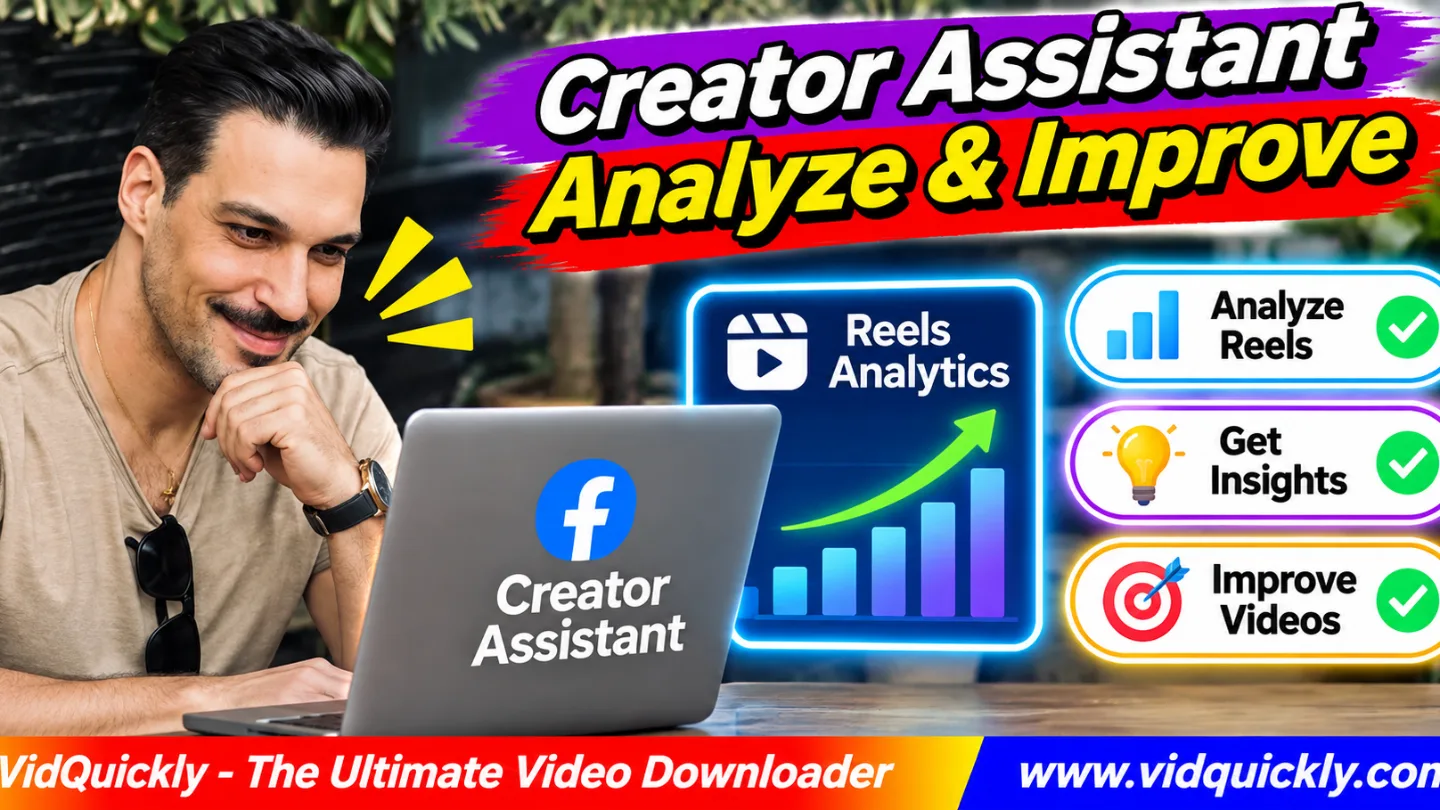
Facebook Creator Assistant for Reels helps eligible creators understand video performance, explore audience insights, and plan better content. Open your Facebook Creator Dashboard, find Creator Assistant if available, and ask why one Reel performed better than another. Then use follow-up questions to turn the analysis into practical ideas.
Meta introduced Creator Assistant in June 2026 as an AI partner that understands your Facebook content, audience, and goals. It can explain performance patterns and suggest new content ideas.
This guide shows how to access the tool, compare Reels, ask useful questions, check AI answers against real metrics, and improve your next video without guessing.
Key Takeaways:
- Creator Assistant helps explain Facebook Reels performance.
- Eligible creators can access it through Facebook's creator tools.
- Ask specific questions about views, audience, and engagement.
- Compare similar Reels instead of looking at views alone.
- Use follow-up questions to investigate possible causes.
- Ask AI for content ideas based on your audience and goals.
- Verify AI suggestions with your actual performance data.
- Keep your original video files for future editing and testing.
What Is Facebook Creator Assistant and How Does It Work?
Facebook Creator Assistant is an AI-powered tool that helps creators understand their content performance and plan what to publish next. It uses information about their Facebook presence, audience, engagement, and goals to provide personalized answers.
Meta announced Creator Assistant on June 4, 2026.
Instead of checking several charts and trying to explain every result yourself, you can ask the assistant questions in normal language.
For example:
- "Why did my latest Reel perform better?"
- "Which topics bring the most engagement?"
- "How has my audience changed this month?"
- "What should I post next?"
- "Which content format should I test?"
The assistant can also respond to follow-up questions.
This makes it different from a normal analytics dashboard that mainly displays numbers.
Creator Assistant vs Professional Dashboard
The Professional Dashboard or Creator Dashboard provides performance data and creator tools.
Creator Assistant helps interpret that information and suggest possible actions.
| Feature | Creator Dashboard Insights | Creator Assistant |
|---|---|---|
| Main purpose | Show performance data | Explain patterns and suggest actions |
| Reels metrics | Charts and numbers | Conversational analysis |
| Audience information | Available audience statistics | Personalized audience explanations |
| Content planning | Manual review | AI-generated ideas |
| Follow-up questions | Not a standard chart function | Conversational questions |
| Best use | Verify results | Explore possible reasons |
Both tools work better together.
Use Creator Assistant to find possible explanations, then check the actual metrics before changing your content strategy.
Meta describes these capabilities in its official announcement, Introducing Creator Assistant on Facebook.
How to Access Facebook Creator Assistant in 2026
Facebook Creator Assistant is available only to eligible creators in supported rollouts. Meta initially introduced it to creators in the United States, Canada, and India, with plans to expand access and add more features.
Step 1: Open your Creator Dashboard
- Open Facebook and sign in to your creator account.
- Switch to the relevant professional profile or Page.
- Open the Professional Dashboard or Creator Dashboard.
- Look for Creator Assistant or an AI assistant entry.
- Open the assistant if your account has access.
- Review the available suggestions or conversation area.
Meta has also developed additional creator experiences, including Creator Studio.
The location of the assistant may differ between mobile, desktop, and supported creator products.
Do not assume every account has the same interface.
Step 2: Choose a clear analysis goal
Before asking a question, decide what you want to improve.
Common goals include:
- More people discovering your Reels.
- Better audience retention.
- More meaningful comments.
- More followers.
- More website visits.
- Better results from product demonstrations.
For example, a creator who wants more followers should not judge success only by total views.
A business that wants customers may care more about inquiries and website clicks.
What if Creator Assistant is missing?
Check the following:
- Your account uses the appropriate creator tools.
- Your country has access to the current rollout.
- Your Facebook app is updated.
- You have opened the correct profile or Page.
- Creator Assistant appears in the available dashboard or creator product.
If the feature remains unavailable, use Facebook Insights to review your performance manually.
Do not install unofficial browser extensions that claim to unlock Creator Assistant or request your Facebook password.
How to Analyze Facebook Reels Performance With AI
To analyze Facebook Reels with Creator Assistant, start with a specific video and ask the AI to compare its performance with similar content. Focus on reach, watch behavior, engagement, and audience response rather than one large view count.
Step 1: Ask why one Reel performed better
- Open Creator Assistant.
- Identify a recent Reel with strong performance.
- Ask why it performed better than your other Reels.
- Review the explanation.
- Ask which metrics support the answer.
- Compare those metrics in your dashboard.
- Write down one possible improvement.
A useful question is:
"Why did my product demonstration Reel perform better than my other videos this week?"
The assistant may identify patterns involving the topic, content format, audience, or timing.
Treat these as explanations to investigate, not proof of what caused the result.
Step 2: Compare similar Reels
Choose videos with similar topics or goals.
For example, compare two cooking tutorials rather than a cooking tutorial and an unrelated comedy video.
Ask:
"Compare my two recent cooking Reels. What differences in audience response should I investigate?"
Check the actual results before accepting the answer.
Important metrics may include:
- Reach.
- Views or plays.
- Average watch time.
- Audience retention.
- Shares.
- Comments.
- New followers.
Available metrics and definitions can vary by account and reporting interface.
Step 3: Check the numbers behind the answer
Imagine these example results:
| Metric | Reel A | Reel B |
|---|---|---|
| Video length | 30 seconds | 30 seconds |
| Views | 12,000 | 8,000 |
| Average watch time | 19 seconds | 24 seconds |
| Shares | 60 | 110 |
| New followers | 18 | 35 |
Reel A has more views.
However, Reel B has longer average watch time, more shares, and more new followers.
If your goal is follower growth, Reel B may be the more useful model.
These numbers are fictional examples, not Facebook benchmarks.
Also compare videos over similar reporting periods. An older Reel has had more time to collect views and engagement.
How to Use Audience Insights and Follow-Up Questions
Creator Assistant can help creators explore audience changes and engagement patterns through conversation. Ask one clear question first, then use follow-up questions to understand the possible reasons and decide what to test next.
Ask about your audience
Useful questions include:
- "How has my audience changed over the last month?"
- "Which Reels brought new followers?"
- "What topics receive the most comments?"
- "Which videos encourage viewers to share?"
- "What content should I make for returning viewers?"
Ask the assistant to identify the reporting period and metrics behind its conclusions.
This helps you avoid confusing short-term changes with longer trends.
Ask follow-up questions that lead to action
A general answer may say that educational videos perform well.
Do not stop there.
Ask:
- "Which educational topics performed best?"
- "Were those videos shorter or longer?"
- "Did viewers watch more of the video?"
- "Which audience groups responded?"
- "What should I test in my next three Reels?"
This turns a broad observation into a practical plan.
Understand why a Reel performed better
A strong Reel may have several advantages.
For example:
- The opening hook explains the topic quickly.
- The video answers a common question.
- The demonstration is easy to follow.
- Captions make the message clearer.
- Viewers share it with friends.
- The topic matches current audience interests.
Creator Assistant can help identify possible patterns.
However, it cannot prove that one editing choice caused a particular result without a suitable test.
Facebook also uses recommendation systems that consider viewer preferences.
For more information about viewer-side controls, read this Facebook Reels recommendation personalization guide.
Remember that Creator Assistant analyzes the creator's performance, while Your Algorithm helps viewers influence their own recommendations.
How to Generate Better Facebook Reel Ideas With Creator Assistant
Creator Assistant can suggest new Reel topics using your content history, audience response, goals, and relevant trends. The best approach is to request a small group of ideas, choose one clear goal, and test the suggestions rather than publishing everything AI recommends.
Step 1: Request ideas based on your best content
- Open Creator Assistant.
- Identify your strongest recent Reel.
- Ask for five related content ideas.
- Request a different hook for each idea.
- Ask which audience need each idea addresses.
- Select two or three ideas to test.
Example question:
"Suggest five new Reels based on my best-performing product tutorial. Each idea should answer a different customer question."
This gives the assistant a clear direction.
Step 2: Turn an idea into a simple video plan
Ask Creator Assistant to help organize the next video.
A useful plan contains:
- Hook: Explain why the viewer should watch.
- Main point: Answer one question.
- Demonstration: Show the useful step or result.
- Caption: Summarize the message.
- CTA: Suggest one relevant next action.
For example:
Hook: "Why does this appliance use so much electricity?"
Main point: Explain one common cause.
Demonstration: Show the setting that affects energy use.
CTA: "Save this tip for later."
Check all technical claims before publishing.
Step 3: Reuse your own original recordings
You do not always need new footage.
A livestream, product demonstration, or tutorial may already contain useful short clips.
You can follow this Facebook Live recording repurposing workflow to select highlights and prepare vertical videos.
Keep the original recordings available for future changes.
For eligible recordings you own or have permission to save, the Facebook video and Reel backup service can support your media collection process.
Do not assume a downloaded MP4 contains every original editing asset.
Step 4: Check language and audio quality
If your audience includes viewers from different countries, consider whether subtitles or translated content could improve understanding.
Facebook also offers AI translation features for eligible Reels.
However, translated playback and a downloaded video's audio are not always identical.
See this Facebook AI dubbing and download explanation before using downloaded media for multilingual editing.
If you also manage Instagram recordings, the Instagram video and Reel backup tool can support authorized media storage.
How to Turn AI Insights Into a Repeatable Reels Strategy
The best way to use Creator Assistant is to turn each analysis into a small content experiment. Choose one change, publish a comparable Reel, and measure whether the result improves your actual goal.
Build a simple weekly workflow
- Review your recent Reels.
- Identify one strong and one weak performer.
- Ask Creator Assistant to compare them.
- Check the supporting metrics.
- Choose one improvement to test.
- Create and publish the next Reel.
- Review the results after a consistent period.
Change one main element at a time when possible.
For example, test a clearer opening hook while keeping the topic and format similar.
This makes the results easier to interpret.
Track your experiments
Use a spreadsheet with these fields:
- Reel title and URL.
- Publication date.
- Content topic.
- Video length.
- Opening hook.
- Main CTA.
- Views and watch time.
- Shares and follower growth.
- AI suggestion tested.
- Final result.
Do not compare metrics from different reporting periods without noting the difference.
Also record whether the video used original footage, a new edit, or a translated version.
Avoid common AI analysis mistakes
Creator Assistant is useful, but its answers still need human review.
Avoid these mistakes:
- Treating a possible explanation as proven fact.
- Comparing videos with very different goals.
- Judging success only by views.
- Copying every suggested trend.
- Ignoring negative audience feedback.
- Changing too many variables at once.
- Publishing inaccurate AI-generated claims.
Keep your creative decisions connected to your audience and business goals.
Legal and safety disclaimer: Analyze, download, edit, and reuse only content you own, have permission to use, or have another lawful basis to access. Respect copyright, privacy, music licenses, and Meta's terms. Review AI-generated advice before acting on it, and do not share passwords or confidential customer information in prompts.
Frequently Asked Questions
What is Facebook Creator Assistant for Reels?
Facebook Creator Assistant is an AI tool that helps eligible creators understand Reel performance, audience behavior, and content opportunities. It provides conversational answers based on their Facebook presence.
Is Facebook Creator Assistant available to everyone?
No. Meta initially launched it for creators in the United States, Canada, and India, with plans to expand. Access depends on the current rollout and account eligibility.
Where can I find Facebook Creator Assistant?
Open the appropriate Facebook Creator Dashboard or supported creator product and look for Creator Assistant. Its location can vary by device and account.
Can Creator Assistant explain why my Reel got more views?
It can suggest possible reasons using performance and audience information. However, its explanation is not proof that a specific editing choice caused the increase.
Can Creator Assistant suggest my next Facebook Reel?
Yes. Meta describes it as a brainstorming partner that can suggest topics, creative angles, and trends based on your audience and goals.
Does Creator Assistant automatically edit my videos?
Meta's original announcement focused on analysis, conversation, and content ideas. Do not assume that your account has automatic video editing or publishing features.
Is Creator Assistant the same as Meta AI or Your Algorithm?
No. Creator Assistant focuses on helping creators understand and improve their content. Your Algorithm helps viewers personalize recommendations, while other Meta AI tools serve different purposes.
Conclusion: Use Creator Assistant to Make Better Facebook Reels
Facebook Creator Assistant helps eligible creators move from basic performance numbers to more useful content decisions. Ask why a Reel performed well, explore audience changes, and use follow-up questions to find ideas worth testing.
Check every important AI explanation against your Creator Dashboard metrics. Then improve one part of your next video, such as its hook, topic, pacing, or CTA.
Keep a simple record of your experiments and preserve your original footage for future editing.
Use Creator Assistant for analysis and VidQuickly for supported, authorized video backups. Together, these separate workflows can make content planning more organized and practical.