Instagram video downloader not working? First, open the original Instagram video and check whether it still plays. Copy its full link again, confirm that the post is public, and retry with a stable internet connection. If the download starts but fails, check your browser, device storage, and MP4 playback.
Most problems fall into three groups: invalid links, unavailable media, or failed file saving. A downloader cannot recover deleted posts or access private content without permission.
This guide covers 10 common Instagram download errors, their likely causes, and practical fixes for Reels, video posts, iPhone, Android, Windows, and Mac.
Key Takeaways — Quick Checklist
- Open the original Instagram video and confirm it plays.
- Copy the complete Reel or post URL.
- Check whether the content is publicly accessible.
- Refresh the downloader and retry once.
- Check your internet connection and browser.
- Look in Downloads before downloading again.
- Verify MP4 playback, sound, and file size.
What Should You Check Before Fixing an Instagram Downloader?
Start with the original source, not the download button. If Instagram has removed the recording or restricted access, changing browser settings will not make the media publicly available.
How do you test an Instagram video link?
- Open the Instagram post or Reel.
- Confirm the video plays normally.
- Select Share or the available menu.
- Choose Copy Link.
- Open VidQuickly's Instagram video download tool.
- Paste the complete address.
- Click Download.
- Review the result or exact error message.
VidQuickly documents this browser-based workflow for compatible public Instagram video links.
The available resolution depends on the original media. No downloader can guarantee every post has an HD file.
Which Instagram links can cause errors?
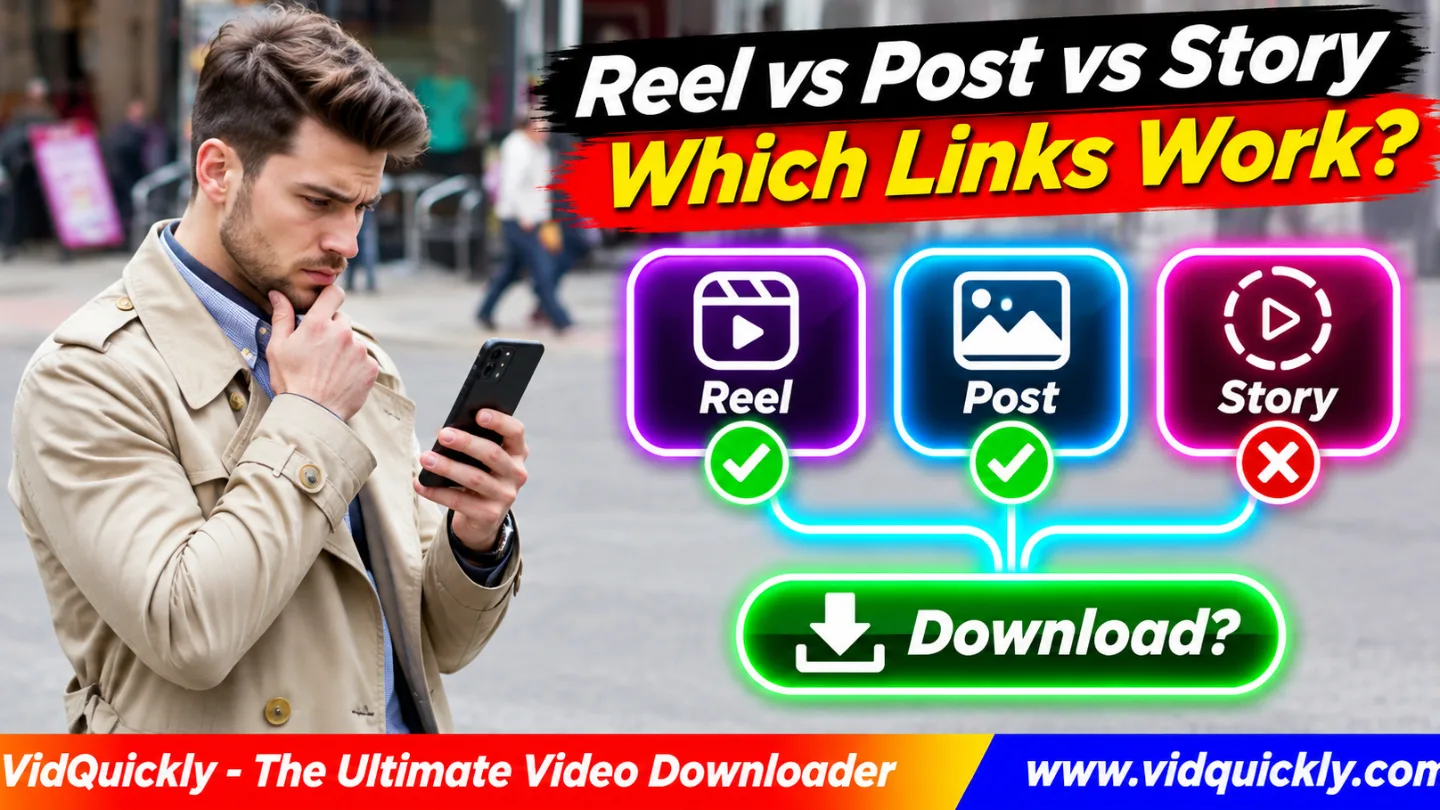
Common Instagram page types include:
instagram.com/reel/{shortcode}/instagram.com/p/{shortcode}/instagram.com/stories/{username}/{story-id}/- Profile and Explore pages.
These are general URL structures, not promises that every page type works.
A Reel page identifies a specific recording. A profile or Explore page usually contains many items.
For related creator workflows, read practical Instagram Reel creation and sharing tips.
Instagram Downloader Errors 1–5: Links and Source Access
An Instagram downloader error often begins before the file transfer. Incorrect URLs, private accounts, removed posts, or unavailable source media can prevent extraction.
Identify the problem before retrying multiple times.
Error 1: Instagram Link Not Working
An Instagram link not working error usually means the address is incomplete, incorrect, or points to the wrong page.
Fix:
- Return to the original post.
- Copy its link directly from Instagram.
- Check for missing characters or spaces.
- Paste the complete HTTPS address.
- Retry the downloader.
Avoid manually typing a Reel shortcode or replacing a post URL with a profile link.
If the link opens the wrong content, find the correct individual recording.
Error 2: Unsupported URL or Invalid Link
An Instagram downloader unsupported URL message means the tool cannot recognize or process the submitted address.
The URL might be a profile, search result, Story, or unsupported sharing format.
Fix:
- Open the individual video page.
- Copy its current address.
- Check that the link points to Instagram.
- Remove accidental spaces.
- Submit the URL again.
A valid Instagram webpage is not automatically a supported downloader input.
Different tools recognize different media types.
Error 3: Private Account or Restricted Post
A private Instagram account limits access to approved followers. A public-link downloader may not have permission to retrieve that content, even when you can watch it through your own Instagram account.
Fix: Check whether the post is public and accessible without special account permissions.
If the recording belongs to someone else, request an authorized copy from the creator.
Do not enter your Instagram password into an unfamiliar downloader or attempt to bypass privacy controls.
Error 4: Instagram Video Unavailable or Deleted
An Instagram video unavailable error may mean the creator deleted the post, archived it, changed its visibility, or removed the recording.
A previously saved link can remain in a message even after the media disappears.
Fix: Open the source URL and check whether the post still exists.
If you own the content, review your original files and Instagram's available account export tools.
Third-party downloaders cannot guarantee recovery of removed posts.
Error 5: Instagram Reel Not Downloading
An Instagram Reel not downloading problem can occur when the Reel page opens but the downloader cannot obtain a compatible media file.
This may involve temporary source changes, unavailable media, or unsupported processing.
Fix: Confirm the Reel plays, copy its link again, and retry once.
Check whether another authorized public Reel works.
If one Reel fails while others work, focus on that recording rather than reinstalling your entire browser.
Instagram Downloader Errors 6–10: Buttons, Transfers and Files
Some downloads fail after the tool recognizes the link. Browser behavior, network interruptions, local storage, and MP4 compatibility can prevent a usable file from appearing.
Error 6: Instagram Download Button Not Working
An Instagram video download button not working error may mean the page script failed, the browser blocked a new tab, or the tool could not return a media result.
Fix:
- Refresh the downloader page.
- Check whether a result appeared.
- Update your browser.
- Review blocked pop-up notifications.
- Test another supported browser.
- Retry the same valid public link.
Do not disable all browser security features or install unknown extensions.
Error 7: Download Opens a New Tab Instead of Saving
Sometimes the download button opens an MP4 in the browser's video player.
This does not automatically mean extraction failed. The browser may choose inline playback instead of saving a file.
Fix: Check the player's menu for a supported download option.
On desktop, an available Save video as command may help.
On mobile, review the browser's Share or Save controls.
For more detail, see why Instagram MP4 links open browser tabs.
Error 8: Instagram Download Stuck or Frozen
An Instagram download stuck problem may result from unstable internet, a slow server, an interrupted transfer, or insufficient storage.
Large recordings may also need additional file-processing time.
Fix:
- Check whether the download is progressing.
- Confirm the device has free storage.
- Review browser download history.
- Stop unnecessary parallel transfers.
- Retry after a confirmed failure.
Do not assume a download that reaches 99% has completed.
Wait for the browser to confirm the final file.
Error 9: Download Completed but Video Is Missing
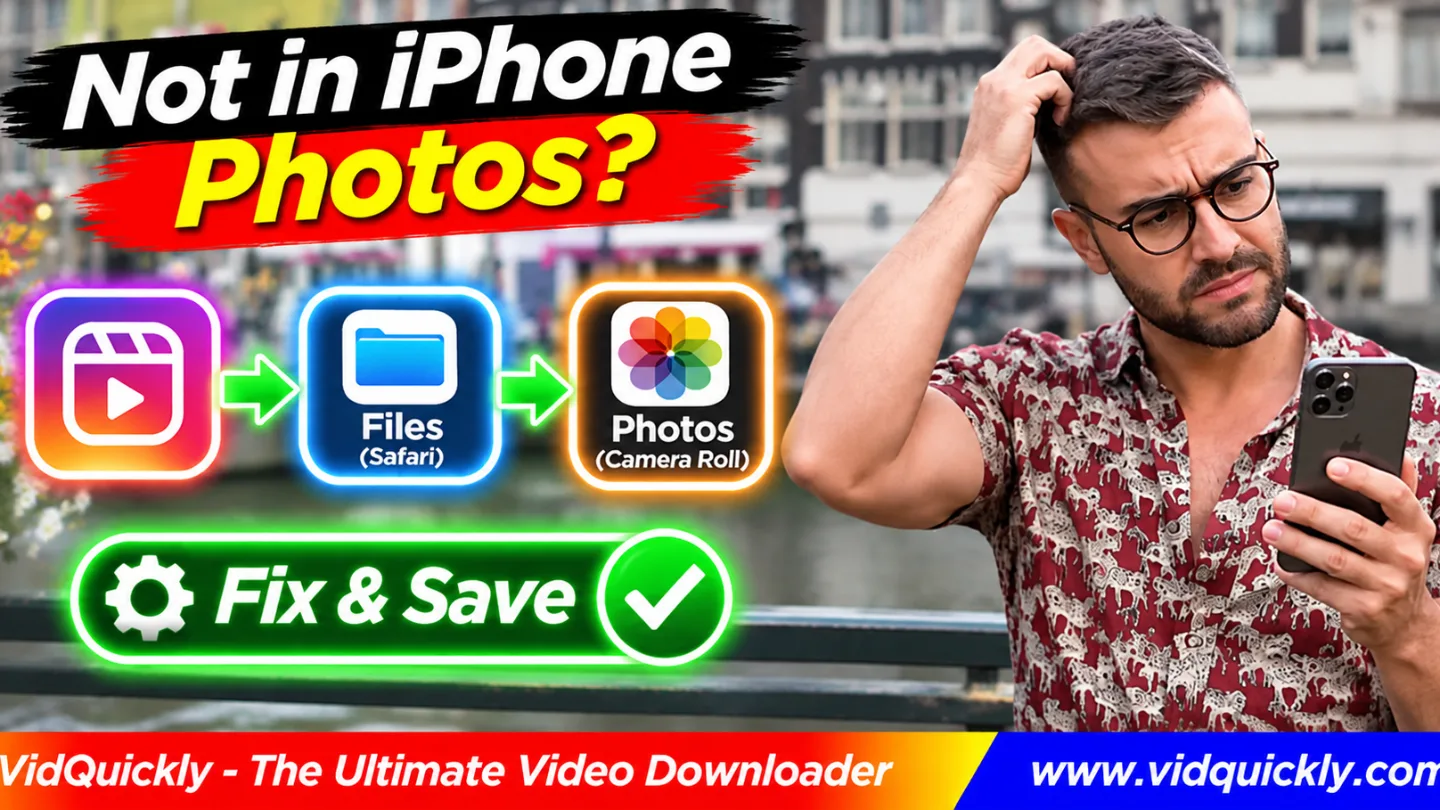
Your Instagram video may already exist in Downloads even when it does not appear in Photos or Gallery.
Browser downloads and media-library imports are separate actions.
Fix: On Android, open Files or My Files and check Downloads.
On iPhone, check Safari Downloads and the Files app.
On Windows or Mac, inspect the browser's download list and destination folder.
If the MP4 exists, play it before saving another copy.
Error 10: Downloaded Instagram MP4 Won't Play
A completed download can still fail because of missing data, unsupported codecs, or damaged file metadata.
MP4 is a container, not a guarantee that every device can decode the video.
Fix:
- Confirm the file has a reasonable size.
- Open it in an updated media player.
- Test playback from beginning to end.
- Check the audio and video tracks.
- Compare its duration with the original.
- Retry an authorized download if the file is incomplete.
Renaming an HTML page or incomplete file to .mp4 will not repair it.
Instagram Download Error Troubleshooting Table
Use the exact symptom to choose your next action. This avoids confusing an unavailable Instagram post with a browser or MP4 playback problem.
| Error | Likely Cause | First Fix |
|---|---|---|
| Invalid Instagram link | Incorrect or incomplete URL | Copy the original link |
| Unsupported URL | Wrong page type | Open an individual video |
| Private account | Access restriction | Request permission |
| Video unavailable | Removed or restricted media | Check source status |
| Reel extraction failed | No compatible media result | Retry valid public Reel |
| Download button inactive | Browser or tool problem | Refresh and check browser |
| MP4 opens in new tab | Inline browser playback | Use available Save control |
| Download stuck | Network or storage issue | Check transfer and free space |
| Video missing from Gallery | File stored in Downloads | Check file manager |
| MP4 won't play | Codec or incomplete file | Test compatible player |
An HTTP error may offer another clue, but it is not a complete diagnosis. For example, 403 means access was denied, 404 indicates a missing resource, and 429 signals too many requests.
How to Fix Instagram Downloads on iPhone, Android and PC
The correct fix depends on where the process stops. A failed link extraction needs different action from a successfully saved video that does not appear in the device's photo library.
How do you fix Instagram downloads on iPhone?
- Open Safari and check the original Reel.
- Copy its complete URL.
- Retry the supported downloader.
- Open Safari's Downloads list.
- Check Files → Downloads.
- Play the saved MP4.
- Use an available Share or Save Video option to add it to Photos.
If Save Video is unavailable, check whether the file has a compatible video format.
Do not assume every downloaded file appears in Photos automatically.
How do you fix Instagram downloads on Android?
- Update Chrome or your preferred browser.
- Copy the Instagram post URL again.
- Check Downloads in the browser.
- Open Files or My Files.
- Find the saved MP4.
- Check playback and available storage.
If the file plays but Gallery does not display it, check the folder location and media visibility.
You may need to move an authorized file into Movies.
How do you fix downloads on Windows or Mac?
Start by checking the browser's download history.
Then inspect the destination folder, available storage, and any interrupted-download status.
If the MP4 opens but has no picture, test a compatible player and check its video codec.
If you use Instagram videos for authorized marketing research, keep the original source link with the saved file.
For broader workflows, explore Instagram content research and video management practices.
What Video Formats and Download Options Should You Check?
Instagram videos commonly use compressed media delivered through formats compatible with modern web playback.
H.264 video and AAC audio are widespread combinations, but Instagram may provide different representations depending on the recording and delivery system.
Does every Instagram Reel download as MP4?
No downloader can guarantee one format for every Reel.
A compatible public recording may have an MP4 output, while other media sources may be unavailable or require unsupported processing.
Some platforms use streaming playlists or separate audio and video representations.
Do not assume an M3U8 playlist is a completed MP4 file.
Choose an available compatible result rather than changing file extensions manually.
Why can Instagram's own Download button be unavailable?
Instagram's native download controls depend on the feature, account, content, and creator settings.
They are not the same as a third-party browser download tool.
Meta describes Instagram's Reels creation features and creator controls in its official Instagram Reels product update.
An unavailable native Download option does not prove VidQuickly is broken.
Respect the creator's choices and Instagram's access rules.
Can another social video downloader fix Instagram links?
Use a downloader that supports the original source platform.
VidQuickly also provides:
- Download supported Facebook videos and Reels for compatible Facebook media.
- Save compatible TikTok videos in MP4 for supported TikTok links.
These tools do not automatically accept Instagram URLs.
A video reposted on another platform may have a different source link and different download permissions.
Responsible use: Save public videos for offline personal research and educational purposes only when you have permission or another lawful basis. Respect copyright, creator consent, account privacy, and platform terms. Never use download tools to bypass private-account access.
Conclusion: Fix the Error Before Trying Another Download
If your Instagram video downloader is not working, identify the failing stage first. Check the original Reel, copy the correct URL, and confirm the post is publicly accessible. Then inspect your browser, network, and available storage.
A video opening in a new tab may still be playable, while a missing Gallery item may already exist in Downloads. A corrupted MP4 needs a different solution.
Avoid repeated requests, unsafe browser extensions, and unsupported private-content tools.
For public videos you have permission to save, try VidQuickly's Instagram video download tool and verify the resulting file before keeping it.
Frequently Asked Questions About Instagram Downloader Errors
Why is my Instagram video downloader not working today?
Check whether the source Reel still plays and whether its URL is public. Then test your browser and internet connection. A temporary service problem or Instagram media change can also affect extraction.
Why can't I download Instagram Reels anymore?
The Reel may be private, deleted, restricted, or unavailable in a compatible format. Copy its current link and check the source. Creator-controlled native download settings can also affect Instagram's own download option.
Why does my Instagram downloader say unsupported URL?
The address may point to a profile, search page, unsupported Story, or incorrectly copied post. Open the individual recording and copy its complete current URL before retrying.
Can I download Instagram videos from private accounts?
Public-link tools generally cannot access private media. Even following a private account does not grant a third-party downloader permission to extract it. Request an authorized file from the creator instead.
Why does the download button open a video instead of saving it?
The browser may display an MP4 using its built-in player. Check whether the player offers a supported save command, then confirm the file appears in your Downloads folder.
Why is my downloaded Instagram video missing from Photos?
Safari may save MP4 files into Files instead of Photos. Check Downloads first. Open the video and use an available Save Video action if the format is compatible.
Does clearing cache always fix Instagram downloader errors?
No. Clearing cache may help with stale browser files, but it cannot restore deleted posts, access private content, or repair unsupported URLs. Identify the original error before clearing browser data.