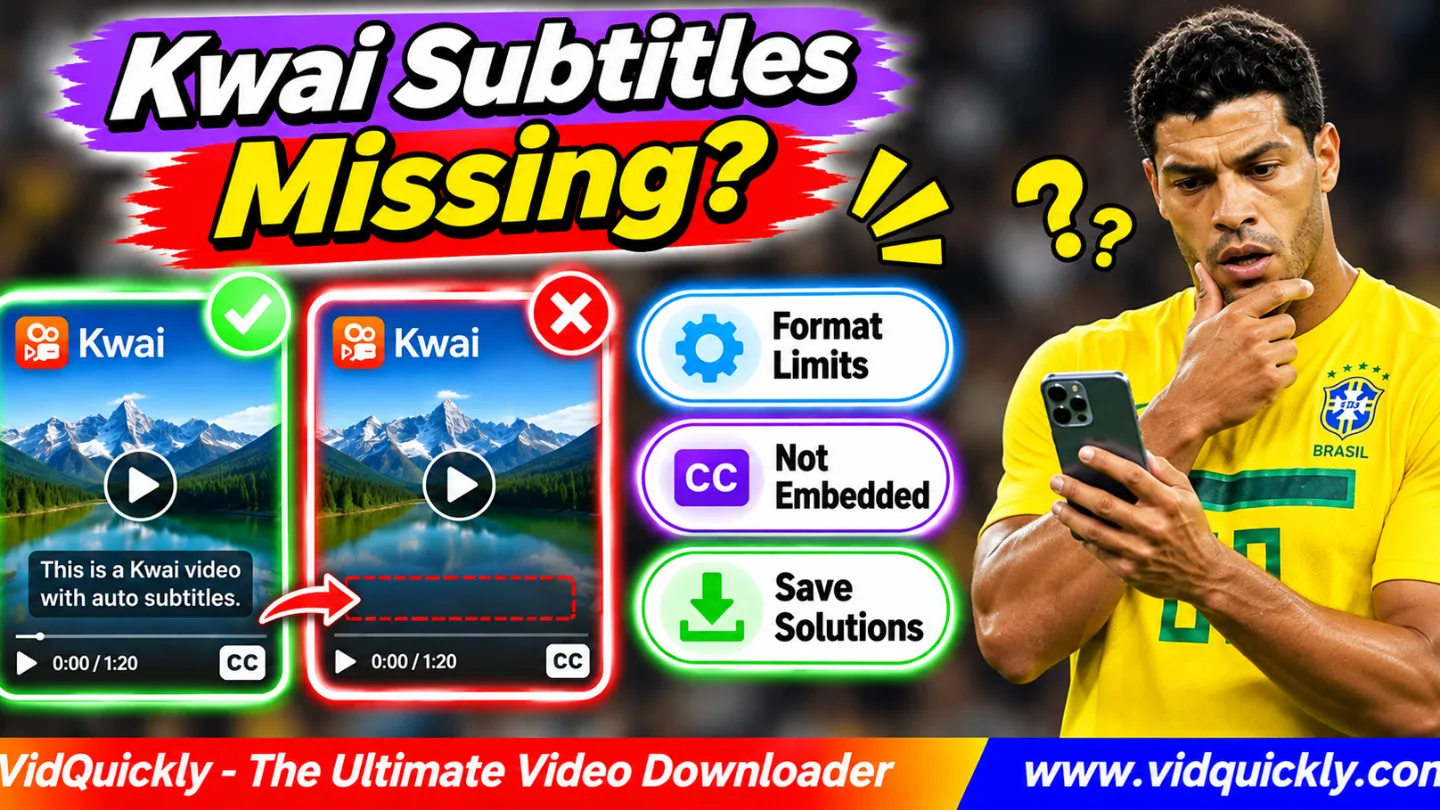
If your Kwai video subtitles are missing after downloading an MP4, the captions may not be part of the saved video file. Some subtitles appear as text directly inside video frames, while others depend on a separate caption track or the app's playback system. A normal MP4 download does not always include these extra elements.
Kwai officially supports an auto subtitle feature that helps creators add text to videos. However, Kwai does not publicly guarantee that every downloaded video contains subtitles or separate caption files.
This guide explains why captions disappear, how to identify subtitle types, and how to save or recreate subtitles for videos you own.
Key Takeaways:
- Kwai supports automatic subtitle creation for videos.
- Visible captions do not always become part of an MP4.
- Burned-in subtitles stay inside the video image.
- Closed captions may require a separate track or file.
- SRT and VTT files store timed subtitle text.
- Check the saved video in more than one player.
- Use a video editor to add permanent captions to your own content.
- Respect copyright and access permissions when downloading videos.
Why Do Kwai Video Subtitles Disappear After Downloading?
Kwai video subtitles can disappear when the downloaded file contains only video and audio, without the caption data shown during playback. The result depends on how the creator added subtitles, how Kwai delivers them, and what the download method saves.
Kwai offers an auto subtitle function for creators.
According to its official creator documentation, the feature can add text subtitles to a video with one click.
This helps viewers understand speech even when they turn off the sound.
However, the presence of captions inside Kwai does not prove that every available MP4 contains those words.
Common reasons captions are missing
- Separate captions: The player displays text that is not part of the video image.
- Missing subtitle track: The downloaded file does not include the timed text.
- Unsupported player: The file contains captions, but the player does not display them.
- Different export: The saved version differs from the version shown in Kwai.
- Editing issue: The creator did not include subtitles in the final rendered video.
- Wrong file: The downloaded video is an earlier version without captions.
These are possible technical causes, not confirmed behavior for every Kwai video.
The correct diagnosis starts with the downloaded file itself.
Does Kwai automatically remove subtitles?
There is no reliable basis to say Kwai intentionally removes all auto subtitles during downloads.
Some saved files may contain visible text, while others may not.
The difference can depend on the original video and its subtitle format.
Kwai's official creator video creation guide confirms the auto subtitle feature but does not document a universal subtitle export method.
Burned-In Subtitles vs Closed Captions vs Text Overlays
Burned-in subtitles become part of the video picture and cannot be switched off. Closed captions and separate subtitle files store timed text independently, so a downloaded MP4 may not include them unless the export process supports that data.
Compare the main subtitle types
| Subtitle Type | Where It Exists | Appears in a Normal MP4? | Can Viewers Turn It Off? |
|---|---|---|---|
| Burned-in subtitles | Video frames | Yes, when those frames are downloaded | No |
| Closed captions | Separate caption data | Only if included and supported | Usually yes |
| SRT subtitles | Separate text file | Not automatically | Yes, with a supported player |
| WebVTT subtitles | Separate VTT file or stream | Not automatically | Usually yes |
| Text overlay | Editing layer or rendered frames | Yes, if rendered into the video | No, once rendered |
The key question is whether the words are part of the picture or separate data.
What are burned-in subtitles?
Burned-in subtitles, also called hardcoded subtitles, are text pixels inside the video image.
They remain visible when you:
- Pause the video.
- Play it without internet access.
- Open it in another video player.
- Turn off subtitle options.
- Copy the video to another device.
A normal video player cannot hide burned-in text.
If the saved video uses the same frames, the subtitles should remain visible.
What are closed captions?
Closed captions are timed text that a compatible player can display over the video.
They may also describe important sounds, such as music or background noise.
Unlike burned-in text, closed captions can exist outside the video image.
Some MP4 files support embedded timed-text tracks.
However, downloading an MP4 does not guarantee that such a track exists.
Are Kwai auto subtitles always burned in?
Kwai's creator page says users can add text subtitles through its auto subtitle function.
It does not clearly document whether every published result uses burned-in frames, separate caption data, or another delivery method.
Therefore, do not assume all Kwai auto subtitles use one format.
Inspect the specific saved file before choosing a solution.
How to Check Whether Your Downloaded Kwai MP4 Has Subtitles
To identify missing captions, compare the video inside Kwai with the downloaded MP4. Then inspect the file in a player that supports subtitle tracks and check whether any separate SRT or VTT files exist.
Step 1: Compare the original and downloaded video
- Open the original video in Kwai.
- Find a moment where subtitles appear.
- Note the spoken words and their timing.
- Open your downloaded MP4.
- Move to the same moment.
- Check whether the text appears.
- Repeat the test at another point.
Make sure both versions contain the same scene.
If the original shows captions but the MP4 does not, the downloaded version lacks the same visible subtitle presentation.
Step 2: Check the subtitle menu in your player
- Open the MP4 in VLC or another compatible media player.
- Find the Subtitle menu.
- Look for available subtitle tracks.
- Select a track if one exists.
- Replay the scene.
- Check whether captions appear.
If the player reports no subtitle tracks, the MP4 may contain only video and audio.
This does not prove the original Kwai post has no separate caption data.
It only describes the file you downloaded.
Step 3: Look for separate subtitle files
Check the download folder for files ending in:
.srt.vtt.ass.ssa
These are common subtitle formats.
An SRT file usually contains subtitle numbers, timestamps, and text.
A WebVTT file also contains timed text and normally begins with a WEBVTT header.
Do not rename an MP4 file to SRT or VTT.
Changing a filename extension does not convert video data into subtitles.
Step 4: Inspect the media streams
For advanced users, FFprobe can list the streams inside a video file.
Run this command on a file you own or may lawfully inspect:
ffprobe -v error -show_entries stream=index,codec_type,codec_name -of table "video.mp4"
Look for a stream with codec_type set to subtitle.
If you see only video and audio, the file does not contain a recognized embedded subtitle stream.
However, this test cannot detect burned-in text because burned-in subtitles are part of the video image.
How to Fix Kwai Downloaded Videos With No Captions
The best fix depends on whether the subtitles are missing from the file, hidden by the player, or absent from the original video export. Start with the simplest checks before editing or recreating captions.
Fix 1: Check the correct video version
- Open the original Kwai post.
- Confirm the captions appear.
- Copy its individual video link.
- Check that the link opens the correct post.
- Compare the saved file with that post.
A wrong or outdated link can lead to the wrong video.
If you need help identifying the correct address, follow this Kwai video link error troubleshooting guide.
Do not confuse a link problem with a subtitle problem.
Fix 2: Try a different media player
- Open the downloaded MP4 in VLC.
- Check the subtitle track menu.
- Enable an available track.
- Test another player if necessary.
- Compare the results.
A player may fail to display an embedded subtitle format even when another player supports it.
If no player finds captions, inspect the file's streams.
Fix 3: Export your own video with permanent subtitles
If you created the original video, return to your editing project.
- Open the original recording or editing project.
- Add or review the subtitles.
- Correct any transcription errors.
- Position the text inside the visible video area.
- Choose an export that renders the text into the frames.
- Save a new MP4.
- Play the exported file to confirm the captions remain.
This creates burned-in subtitles.
It is often the simplest choice when you need captions to appear consistently across devices.
Fix 4: Use a compatible download option
For a supported public video you own or have permission to save, try the Kwai online MP4 video saver.
Check the resulting file after downloading.
A video downloader may save the available media stream without separate captions.
Do not expect it to generate an SRT file unless that feature is explicitly offered.
For supported Kuaishou videos, use the separate Kuaishou video file backup service.
Kwai and Kuaishou links are not automatically interchangeable.
How to Recreate and Preserve Subtitles for Your Own Kwai Videos
If your downloaded MP4 has no subtitle track or burned-in text, you can create new captions from your original audio. Keep both an editable subtitle file and a captioned video export for future use.
Step 1: Generate or write the transcript
- Open your original video in a trusted editor.
- Use an available speech-to-text feature or type the dialogue.
- Review the transcript carefully.
- Correct names, numbers, and technical words.
- Divide the text into short subtitle lines.
- Match each line to the spoken audio.
Automatic speech recognition can make mistakes.
Background music, accents, and unclear speech may reduce accuracy.
Step 2: Save a separate subtitle file
SRT and VTT are useful when you want editable, timed captions.
A simple SRT example looks like this:
1
00:00:01,000 --> 00:00:03,000
Welcome to my Kwai video.

2
00:00:03,500 --> 00:00:06,000
Today I will show you a simple tip.
Save the file with UTF-8 encoding.
Keep the subtitle file beside the original video.
This makes later translation or correction easier.
Step 3: Create a captioned MP4
- Import your original video into an editor.
- Import the SRT or VTT file if supported.
- Review the subtitle timing.
- Adjust font size and placement.
- Export a version with subtitles rendered into the video.
- Test the result on a phone and computer.
For vertical videos, avoid placing captions too close to the bottom edge.
Kwai's interface controls may cover text in that area.
If you also create photo and video montages, this Kwai Memories original media backup guide explains why finished MP4 files and source materials need separate backups.
Keep an organized subtitle archive
Store these items together:
- Original video file.
- Captioned MP4 export.
- Editable SRT or VTT file.
- Original transcript.
- Project file, if available.
- Language and translation notes.
For general platform background, see this Kwai application features and usage overview.
Legal and safety disclaimer: Download, edit, transcribe, or reuse only videos you own, have permission to use, or have another lawful basis to access. Respect copyright, privacy, creator rights, and Kwai's terms. Do not bypass access restrictions or redistribute protected content without authorization.
Frequently Asked Questions
Why are Kwai video subtitles missing after download?
The saved MP4 may not include the caption data displayed in Kwai. Check whether the original uses burned-in text or a separate subtitle track, then inspect the downloaded file.
Does Kwai support automatic subtitles?
Yes. Kwai's official creator page confirms an auto subtitle feature that helps creators add text subtitles to videos.
Can I download Kwai auto captions as SRT?
Kwai's public creator documentation does not confirm a universal SRT export feature. Check your available editing tools, or create an SRT from your own original audio.
Are burned-in subtitles different from closed captions?
Yes. Burned-in subtitles are part of the video image and cannot be switched off. Closed captions use separate timed text that compatible players can show or hide.
Why do captions appear in Kwai but not VLC?
The original playback may use caption data that the downloaded MP4 does not contain. Alternatively, VLC may need you to enable an embedded subtitle track.
Can I recover missing subtitles from an MP4?
If the MP4 contains no subtitle track or visible text, you cannot extract the original captions directly from that file. You can generate new captions from the audio when you have the necessary rights.
Will downloading in HD restore missing captions?
No. Higher resolution may improve picture quality, but it cannot add a subtitle track that the file does not contain.
Conclusion: Check the Subtitle Type Before Downloading Again
Kwai video subtitles may disappear after download because the saved MP4 does not include the text shown during playback. Burned-in subtitles remain visible in video frames, while separate captions need compatible export and playback support.
Compare the original video with the downloaded file, check for subtitle tracks, and look for separate SRT or VTT files. If you own the content, create a captioned export and keep an editable subtitle backup.
For supported Kwai videos you own or have permission to save, use VidQuickly to obtain an eligible video copy. Always verify its captions, audio, and playback before relying on the file.